How it works
From a chat message to a CRM record.
Shmor is a bot you message on Telegram or forward emails to, with WhatsApp coming soon. It reads what you send about someone you met, writes them to ShmorCRM, its built-in micro-CRM, or to Attio or HubSpot, and replies with what it saved.

Setup
Five minutes, once.
- 01
Sign in with your email
Shmor sends you a sign-in link. Your account and free trial start the first time you use it. No password, no card. - 02
Start in ShmorCRM, or connect your CRM
New accounts start with ShmorCRM, a simple micro-CRM built into Shmor, so there is nothing to connect. When you are ready, connect Attio with a workspace access token or HubSpot with a service key, pasted into your Shmor account. Shmor adds three fields to people or contacts (Met via, Met at and Needs info) and leaves the rest of your setup alone. ShmorCRM and your CRM never sync, so export ShmorCRM records as CSV to take them with you.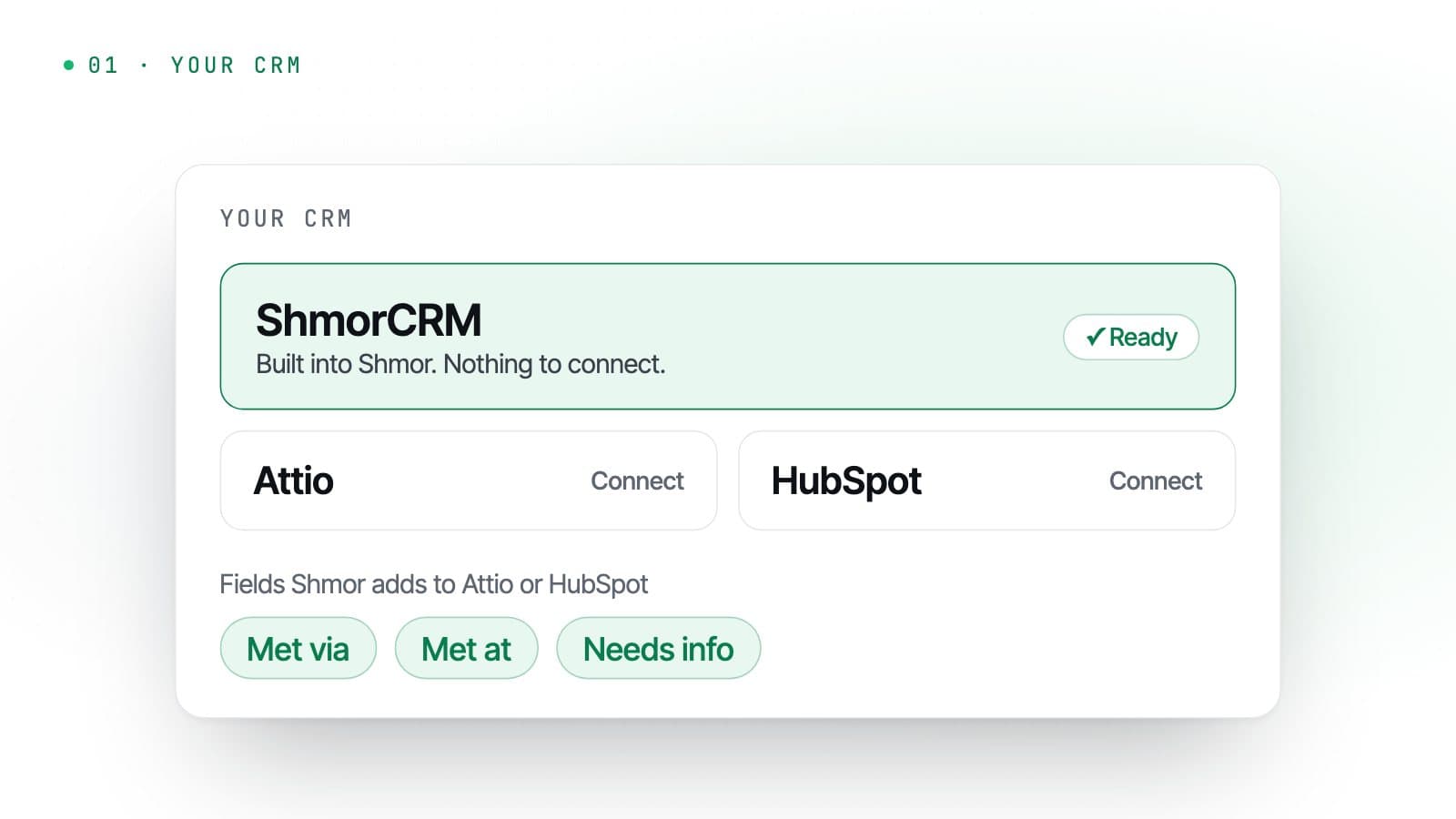
- 03
Link Telegram, or forward an email
Open the one-time link from your account and press Start in the bot. Links expire after 15 minutes. From then on, Shmor knows messages from that account are yours. To use email instead, forward it to in@emails.useshmor.com from your account email (or another address you confirm). WhatsApp is coming soon.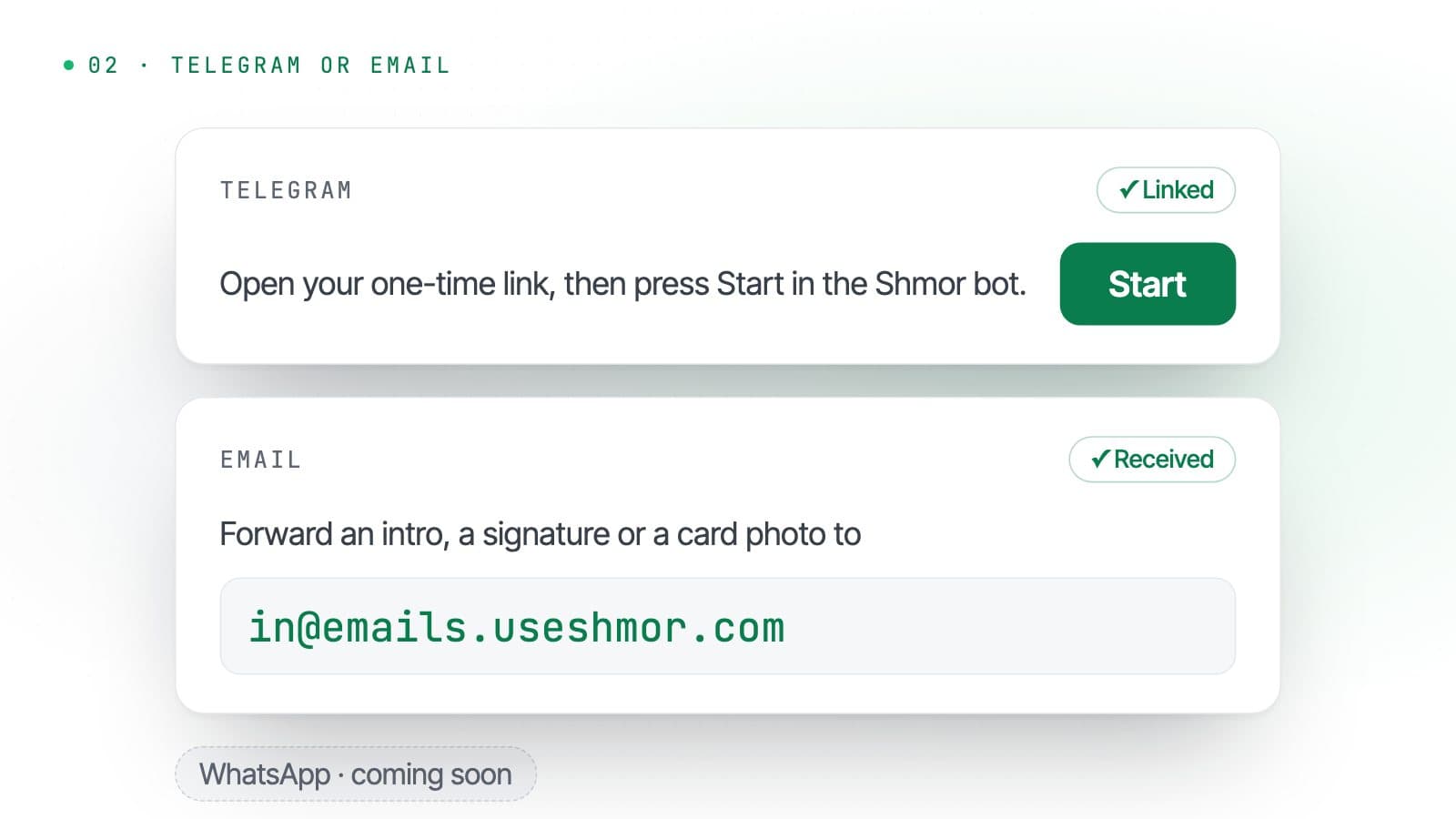
- 04
Send whoever you just met
A screenshot, a card photo, a voice note or a line of text. Shmor replies with what it saved and asks about anything it could not work out.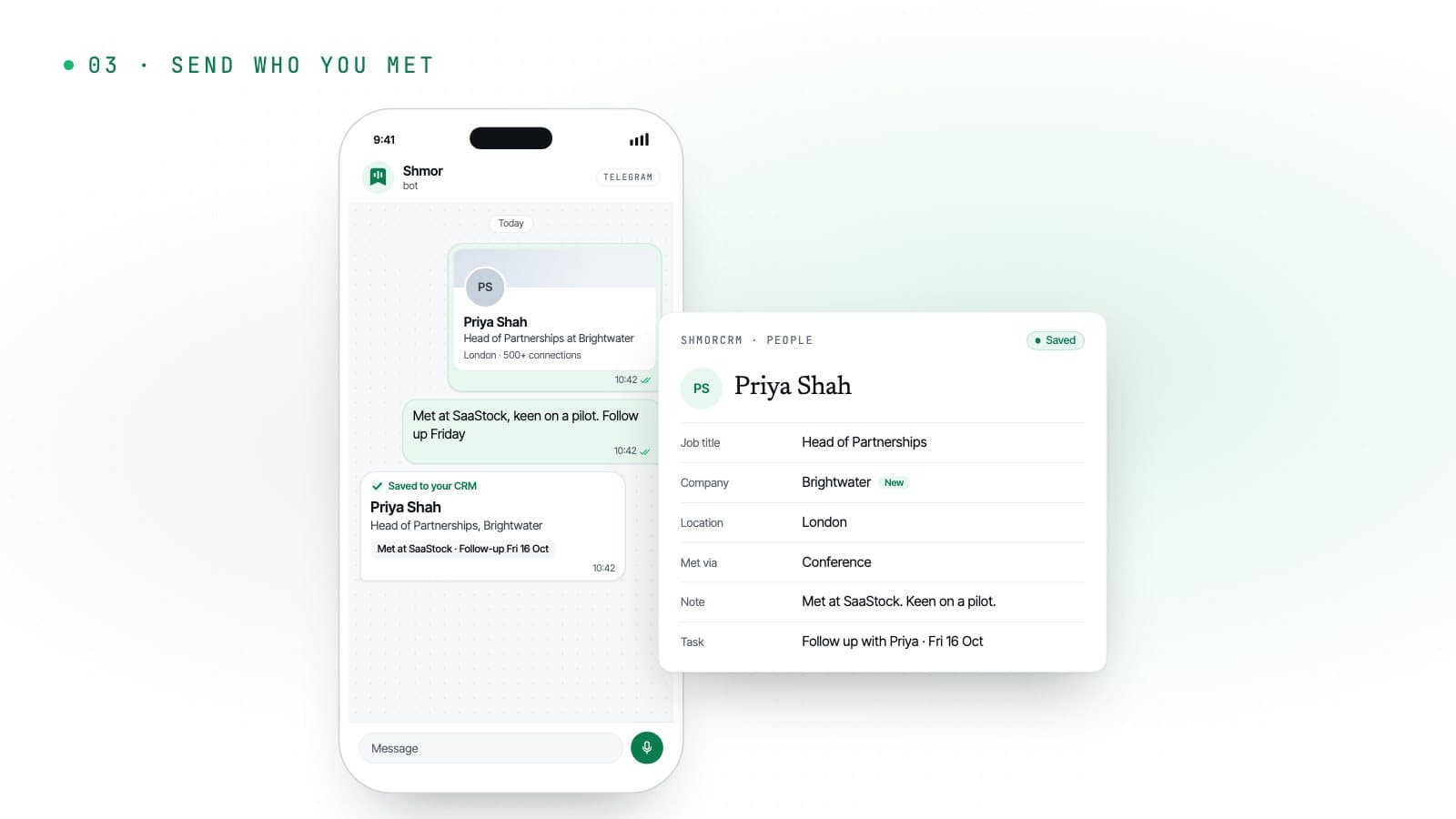
Sending
Send what you have, in any order.
You: [Photo of a business card]
You: Met at the Manchester fintech breakfast. Wants a demo in January, chase after the holidays
Shmor: Saved to your CRM: Sam Patel, Head of Operations at Northbank. Follow-up: Mon 4 Jan.
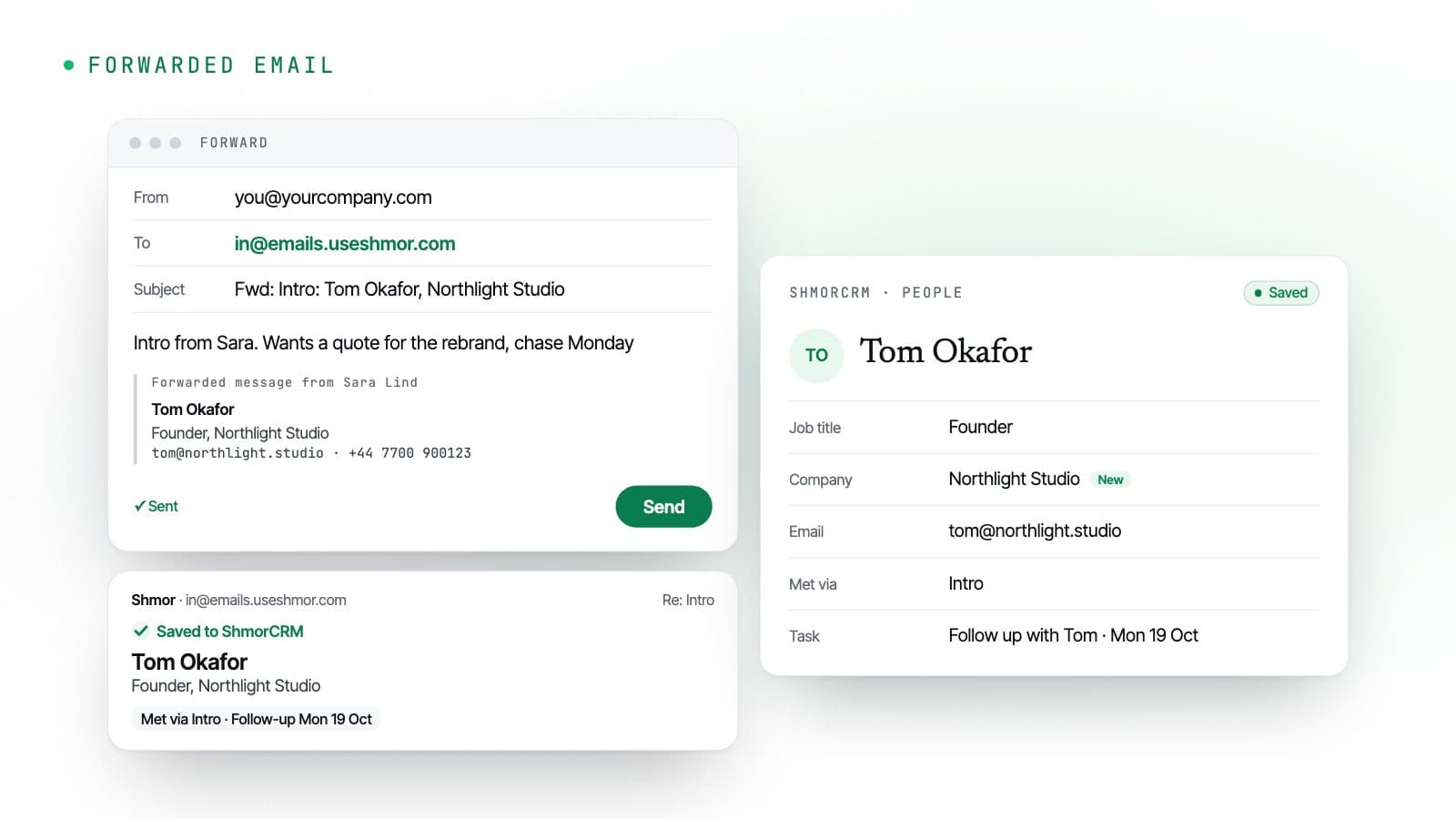
Images and voice notes go to an AI model that reads the details. Voice notes are transcribed first. A capture can include one image (a forwarded email up to 5 attachments) and up to 2 minutes of audio; see pricing for how captures are counted. A forwarded email can carry up to 5 attachments of up to 10 MB each: Shmor reads photos and screenshots, audio and .vcf contact cards, and only accepts mail from your account email or other addresses you have confirmed.
What it reads
What Shmor looks for in a message.
- The person
- First and last name, job title, email addresses, phone numbers, LinkedIn URL and location, when the message shows them.
- The company
- Name and web domain, often read from an email address or a card.
- How you met
- One of Networking event, Conference, Intro, Inbound, Online or Other, plus where: the event name or who introduced you.
- Context
- What you talked about and what they need, for the note.
- Follow-up
- Whether to follow up, and when, if you said so: “chase next Thursday” becomes a due date.
- Opportunity
- On Pro, whether it sounds like a deal and which of your services it is about.
What it writes
What lands in your CRM.
- Company
- Found by web domain, then by name. Created only if nothing matches, so the same company is not added twice.
- Person
- Found by email, then LinkedIn URL, then name and company. An existing record is updated; otherwise a new one is created and linked to the company.
- Met via and Met at
- Written only if the record does not have them yet, so the first meeting is kept.
- Note
- A short summary of the conversation, attached to the person.
- Follow-up task
- Due on the date you gave, or after your default number of days (3 unless you change it), skipping weekends if you prefer.
- Deal
- Pro only, and only if you tap “Create deal” on the reply.
When it is unsure
It asks, then gets out of the way.
If Shmor cannot tell how you met or when to follow up, the reply asks, with buttons for the likely answers. You do not have to answer straight away: reply to that card (or that email) later, and the answer goes to the right person.
Until then, the person is marked in the Needs info field in your CRM. Send /pending to the bot at any time to list everyone who still needs something.
Settings
A few settings you might change.
- Your timezone and how many days until a default follow-up (1 to 60).
- Whether follow-ups skip weekends.
- A short description of your business, so Shmor can tell which conversations are opportunities.
- Transcription keywords: names and words voice notes often get wrong, such as company names.
- Your own Apollo API key, if you want to send LinkedIn links instead of screenshots.
- Other email addresses you forward from, each confirmed by a link.
- For ShmorCRM: deal stages, custom fields, and deleting records automatically after 6, 12 or 24 months without an update.
Related
- AttioThe Attio integration: connecting with a workspace access token (or OAuth), People and Companies records, the Met via, Met at and Needs info attributes, notes, tasks and deals.
- HubSpotThe HubSpot integration: connecting with a service key or private app token (or OAuth), contacts and companies, the Shmor property group, notes, tasks and deals.
- TelegramUsing Shmor from Telegram: linking with /start, what to send, inline buttons and commands. Contacts go to ShmorCRM, Attio or HubSpot.
- WhatsApp (soon)Shmor on WhatsApp is coming soon and cannot be linked yet: how it is planned to work, and how to start on Telegram today.
- SecurityWhat Shmor stores and does not store, encryption of CRM credentials, retention periods, access control and providers.
- FAQConsolidated answers about inputs, ShmorCRM and other CRMs, chat apps and email, captures, privacy, billing and cancelling.
Try it on the next person you meet.
14 days and 25 captures free, no card. Start in ShmorCRM or connect your CRM, link Telegram or forward an email, and send your first contact.